
Steps for integrating Kommo and Power BI
Integrating Kommo with Power BI is an effective way to improve data analysis and boost your team’s performance. If you already use Kommo (formerly amoCRM) for customer relationship management, adding Power BI to your ecosystem can greatly simplify the process of visualizing and analyzing data. Let’s look at the key steps for integrating these two powerful tools.
The first step toward integration is clarifying what you want to achieve. Ask yourself: what data from Kommo do you need in Power BI? This might be sales data, client interaction history, or marketing campaign performance statistics. Defining your goals upfront lets you configure the integration precisely and obtain exactly the information you need.
Once you’ve defined your goals, the next step is setting up the API. Kommo provides an API that allows you to extract data from your CRM. To do this, you’ll need to create an API key in the Kommo settings. It’s a simple process: go to “Settings,” find the “API” section, and follow the instructions. Keep your key safe — you’ll need it to connect to Power BI.
With your API key in hand, open Power BI Desktop and select “Get Data.” In that menu you’ll find a wide range of data sources; choose “Web.” Here you can enter the Kommo API URL that will be used to extract data. Remember that you’ll also need to include the appropriate headers with your API key so that Power BI can authenticate.
After the connection is configured, Power BI will begin retrieving data from Kommo. At this point you can preview the data and select the specific tables and fields you need. This is very convenient — you can filter out unnecessary data and retain only what’s relevant to your analysis. Once you’ve selected the data, click “Load” and it will appear in your Power BI workspace.
With the data loaded, you can begin building visualizations. Power BI offers a wide range of tools for creating reports and dashboards, including charts, diagrams, and tables that let you present data in the most useful format. This allows you not only to monitor current indicators but also to identify trends and patterns that support better business decisions.
Keep in mind that integrating Kommo with Power BI is not a one-time task. You’ll need to refresh the data periodically to keep it current. Power BI supports automatic data refresh scheduling, which significantly reduces the manual effort involved — your data will always be fresh and up to date.
Benefits of using Power BI with Kommo
Kommo provides rich data about client interactions, and Power BI transforms that data into clear charts and diagrams. This simplifies how information is consumed and makes it faster to identify trends and patterns. For example, you can quickly determine which products are most popular and use that insight to make informed decisions about inventory or marketing strategy.
The Kommo–Power BI integration also automates the reporting process. Instead of spending hours manually collecting data and building reports, you can configure automatic data refresh in Power BI. This means you always have access to current information, freeing you to focus on higher-priority work such as strategy development and client engagement. Automated reporting not only saves time but also reduces the risk of human error.
Power BI also provides deep analytical capabilities through tools like DAX (Data Analysis Expressions), which enable complex calculations and data modeling. Rather than simply viewing data, you can analyze it to uncover hidden relationships and dependencies. For example, you can examine how factors such as seasonality or marketing campaigns affect sales performance — giving you a better understanding of customer behavior and informing your strategy.
The integration also supports better teamwork. Reports and dashboards built in Power BI can be shared with colleagues, keeping all team members aligned. This is especially important in distributed work environments where staff may be in different locations. Shared access to data and reports improves communication and accelerates decision-making.
Finally, the Kommo–Power BI integration does not require deep technical knowledge. Ready-made resources and guides are available to help you configure the integration quickly and start benefiting from these platforms — making the setup accessible to any user regardless of technical background.
Examples of visualizing Kommo data in Power BI
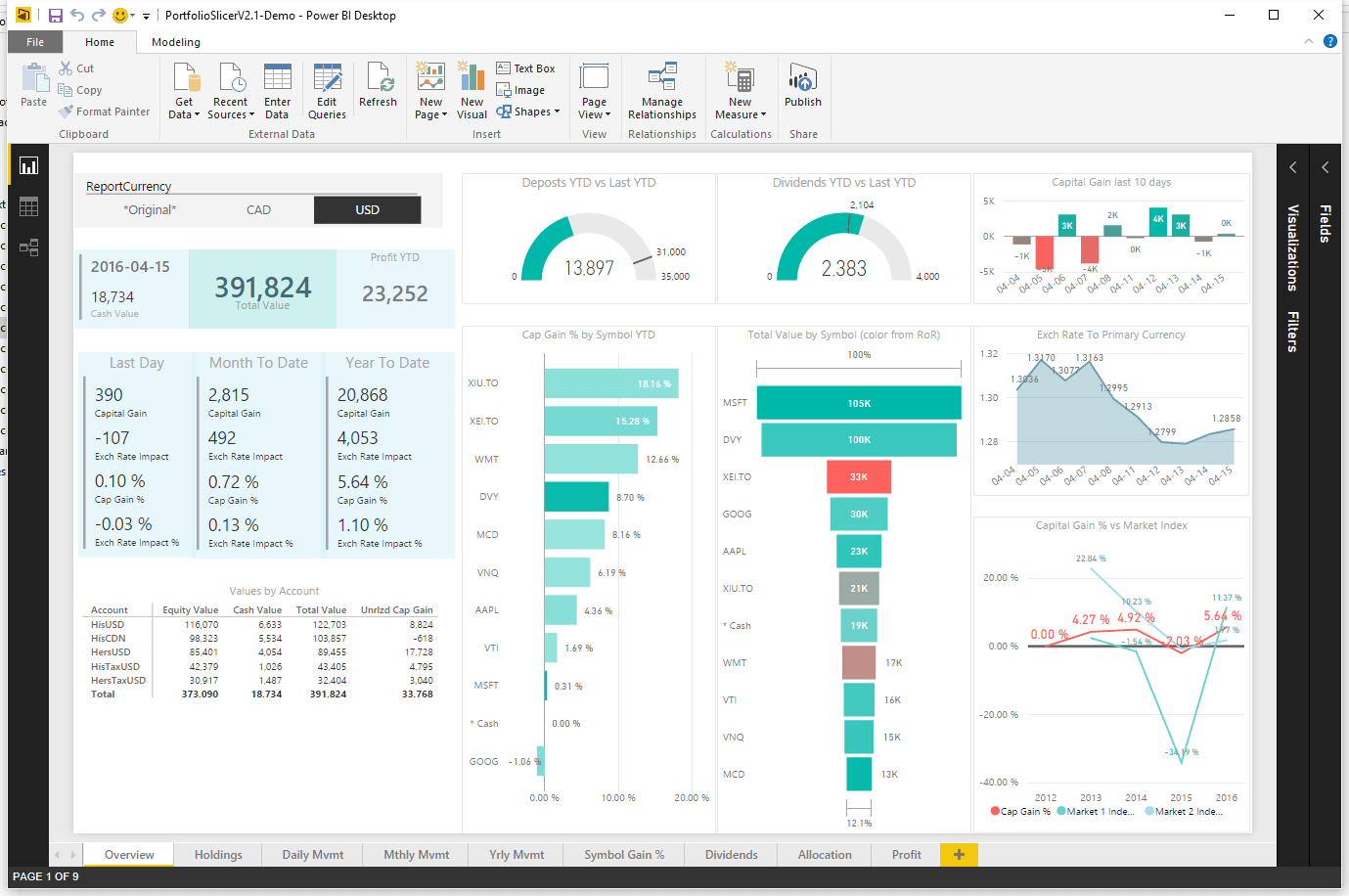
The Kommo–Power BI integration opens up extensive possibilities for data visualization and business process analysis. If you’re already familiar with Kommo, you know how important it is to have current information about clients and sales readily available. Now imagine improving that experience by using Power BI to build clear reports and dashboards. This not only simplifies data analysis but also supports better, more informed decisions.
Starting with the basics: the integration allows you to pull data from Kommo and visualize it in Power BI. For example, you can build a report showing sales dynamics over a specific period. This is particularly useful for tracking team performance. With Power BI you can configure charts and diagrams that clearly illustrate how sales fluctuate over time, enabling you to spot trends and anomalies quickly.
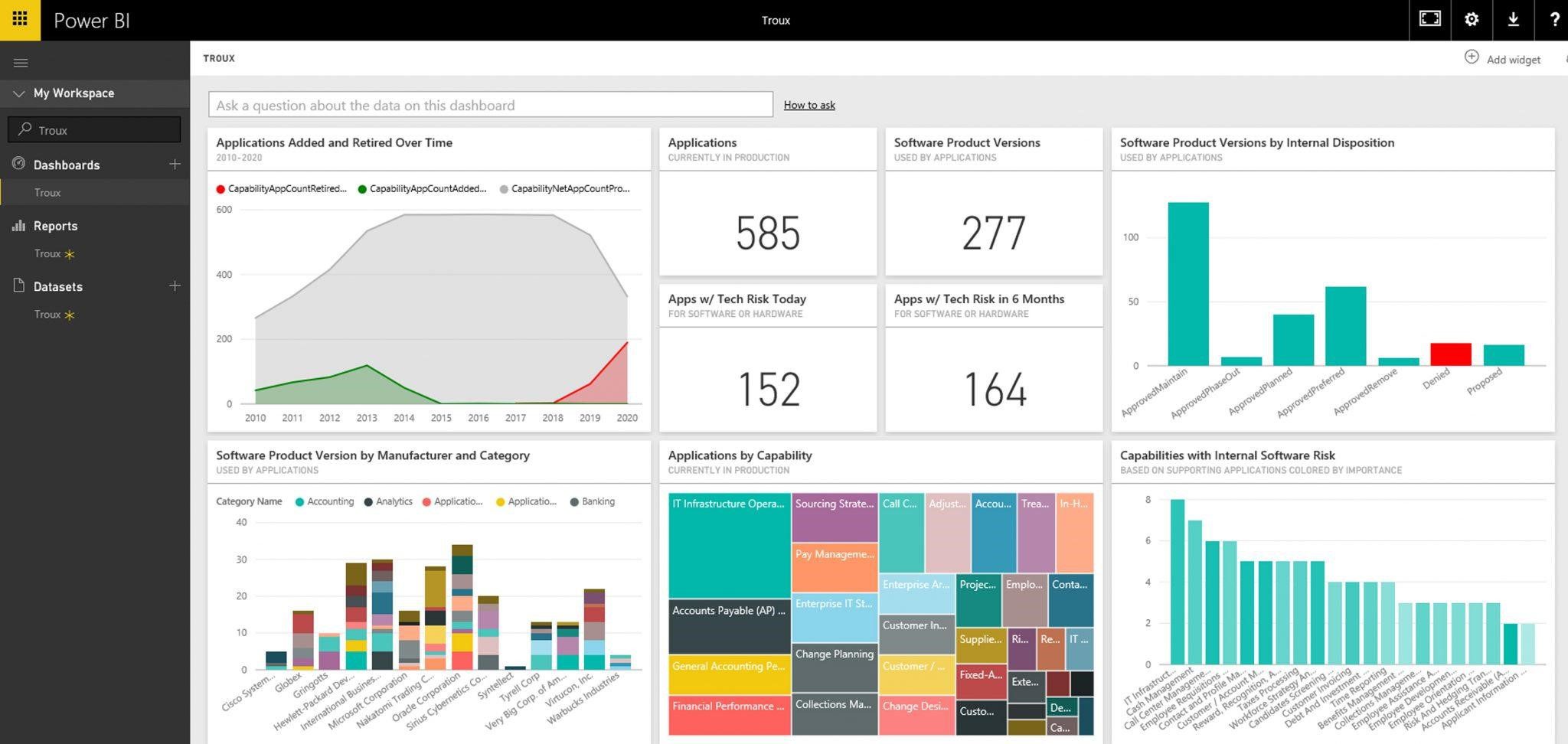
You can also use Power BI to analyze your client base — for example, building a visualization that shows how clients are distributed across different segments. This helps you understand which client groups are most profitable and which require additional attention. By combining Kommo data with other sources, you gain a more complete picture of your audience and can refine your marketing strategies accordingly.
Dashboards that combine multiple visualizations are another powerful option. They let you see the full picture at a glance — combining sales data, client activity, and marketing campaign performance in a single view. This not only simplifies analysis but also makes it more interactive. You can set filters and parameters to focus on the aspects most relevant to you at any given moment.
Reporting on individual employee performance is another compelling use case. You can track how many deals each manager has closed in a given period and compare results across the team. This helps identify top performers while also surfacing best practices. Visualizing this data as bar charts or graphs makes the information accessible and actionable. The time you once spent gathering data can now be devoted to strategic planning and business growth.
To summarize, the Kommo–Power BI integration opens new horizons for data analysis and visualization. Using these tools together, you can not only deepen your understanding of your business processes but also drive meaningful improvements in team performance. Don’t miss the opportunity to take full advantage of what this integration offers — start building your own visualizations today.